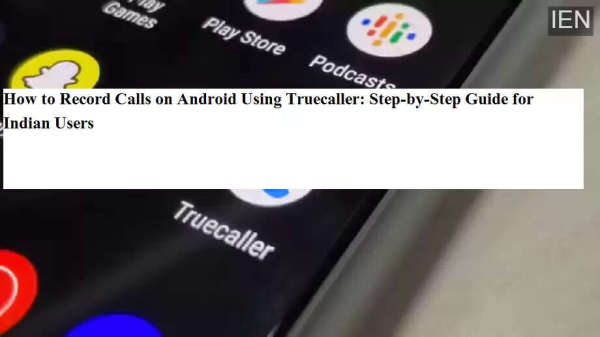
Call recording is a useful feature for many smartphone users, whether it’s for keeping records of important conversations, interviews, or business calls. With the release of Truecaller Version 12, Android users in India received a major update that made call recording available for free—a feature that was earlier limited to paid subscribers.
Truecaller, widely known for its caller identification and spam-blocking services, introduced this feature as part of its redesigned interface and improved functionality. The update is currently available for Android smartphones running Android 5.0 or above, and all call recordings are stored locally on the user’s device.
The latest update to the Truecaller app brings several notable improvements, including:
Free call recording for all Android users
A refreshed and user-friendly interface
Improved spam detection and caller identification
Introduction of Video Caller ID feature
Among these, call recording has emerged as one of the most talked-about additions, especially for users who rely on call logs for professional or personal reasons.
The call recording feature is available to:
Android smartphone users in India
Devices running Android 5.0 or higher
Users who have installed the latest version of Truecaller
It’s important to note that the feature works by enabling accessibility permissions, which allow the app to record calls directly on the device.
Follow these simple steps to enable and use call recording on your Android smartphone:
Open Settings on your Android phone.
Scroll down and tap on Accessibility.
Under the Downloaded Apps section, select Truecaller Call Recording.
Turn on the toggle and allow the required permissions when prompted. Tap OK to confirm.
Now open the Truecaller app and ensure it is updated to the latest version.
Tap on the menu icon (three lines) in the top-left corner.
Scroll down and select Call Recordings.
Enable the Call Recording toggle.
Once activated, a Truecaller Recorder widget will appear on the screen during incoming or outgoing calls. You can tap on this widget to start or stop recording as needed.
All recorded calls are stored locally on your phone. To access them:
Open the Truecaller app
Go to the Call Recordings section
Listen to, share, or delete recordings as required
This ensures better privacy control since recordings are not uploaded to the cloud by default.
Along with call recording, Truecaller has also introduced Video Caller ID. This feature allows users to:
Record a short selfie video
Display the video automatically when calling friends or family
Choose from built-in video templates
This adds a more personal and interactive touch to regular phone calls.
Call recording laws vary by region; always inform the other party before recording.
The feature may not work on some devices due to manufacturer restrictions.
Accessibility permissions are mandatory for call recording functionality.
Truecaller’s free call recording feature is a significant upgrade for Android users in India. With simple setup steps and local storage, it offers convenience while maintaining user privacy. Combined with features like spam blocking and Video Caller ID, Truecaller Version 12 enhances the overall calling experience.
Disclaimer:
Call recording is subject to local laws and regulations. Users are advised to comply with applicable legal requirements before recording any calls.