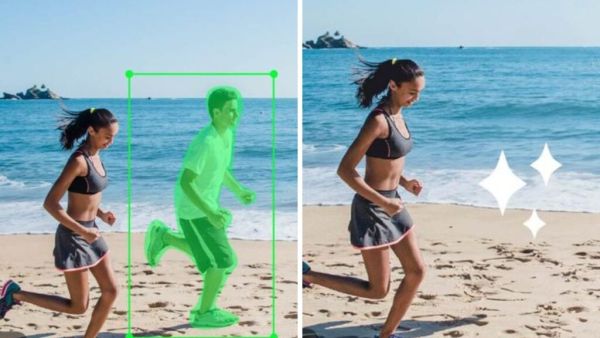
It often happens that we click a photo, but in this photo there are unnecessary objects and people in the background. Which spoils the whole photo. In that case, many people delete this photo. But there is no need to do that now. Because you will be able to easily remove unnecessary people and objects in the background of the photo.
BSNL Recharge Plan: Recharge once, relax for a year! The new plan will offer unlimited calling and 3GB data… only at this price
For this you can take the help of Magic Eraser tool. This is a tool that makes your photo perfect for social media. Currently, this tool is available in all the latest smartphones. This tool is available in smartphone photo gallery called Magic Eraser or Object Remover. With the help of this tool, users can delete unnecessary objects or people from their photos. This tool gives your photo a perfect look.
Magic Eraser is a tool with which you can delete unnecessary objects or people from photos. This tool AI is based on This tool merges logos, text or people in the background into the photo. Which makes the photo look very clear and professional. Let’s know how this tool can be used. (Photo Courtesy – Pinterest)
Magic Eraser or Object Remover is very popular on Google Photos app and desktop site. With the help of this tool, users can completely change the look of their photos. Now let’s know how the magic eraser tool works in Google Photos.
Oppo Reno 15 5G VS Realme 16 Pro Plus 5G: Better Camera or Stronger Battery? Which smartphone will be value for money? find out