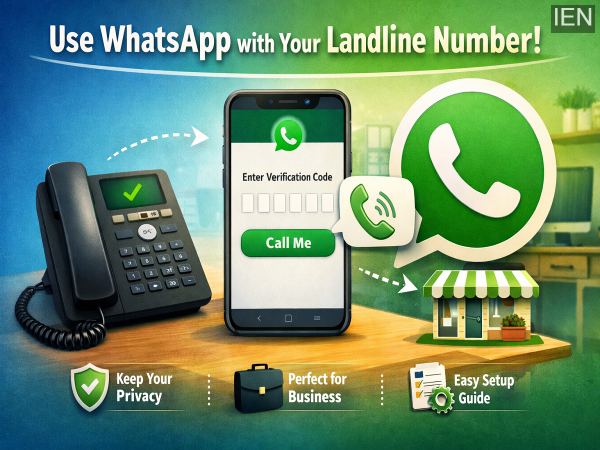
In today’s digital world, messaging apps have become an essential part of everyday communication, and WhatsApp continues to dominate as one of the most widely used platforms. From instant messaging to voice and video calls, it offers a complete communication solution for both personal and professional use. While most users rely on their mobile numbers to register on the app, many are unaware that WhatsApp can also be set up using a landline number.
This lesser-known feature is especially useful for individuals who prefer to keep their personal mobile number private or for businesses that want to maintain a professional identity. By using a landline number, users can create a separate WhatsApp account without linking it to their personal phone number.
With increasing concerns around privacy, many users are looking for ways to limit sharing their personal contact details. Using a landline number on WhatsApp provides an effective solution. It allows users to communicate without exposing their private mobile number, making it particularly beneficial for small business owners, freelancers, and customer service operations.
The introduction of WhatsApp Business has further expanded this capability. Designed specifically for businesses, the app enables companies to connect with customers in a more organized and secure manner. One of its key advantages is the flexibility to register using a landline number instead of a mobile number.
This feature has proven to be a relief for business owners who previously had to rely on personal numbers for professional communication. Now, they can maintain a clear distinction between personal and business interactions while enhancing credibility.
Before setting up WhatsApp with a landline number, ensure you have:
Setting up WhatsApp with a landline number is straightforward. Follow these steps:
Step 1: Install WhatsApp Business
Download and install the WhatsApp Business app from your device’s app store. Once installed, open the app to begin the setup process.
Step 2: Enter Your Landline Number
Select your country code and enter your landline number instead of a mobile number when prompted.
Step 3: Wait for Verification Options
Initially, WhatsApp will attempt to send a verification code via SMS. Since landline numbers cannot receive text messages, this attempt will fail. After about a minute, you will see an option to receive the code via a voice call.
Step 4: Choose the ‘Call Me’ Option
Tap on the “Call Me” option. You will receive an automated voice call on your landline number.
Step 5: Enter the Verification Code
The automated call will provide a six-digit verification code. Enter this code into the app to complete the verification process.
Once your number is verified, your WhatsApp account will be successfully linked to your landline. You can then proceed to set up your profile by adding a name, profile picture, and other relevant details—just like a regular WhatsApp account.
Using WhatsApp with a landline number is a practical solution for those who value privacy or want to maintain a professional communication channel. Whether you are running a small business or simply prefer not to share your personal number, this feature offers flexibility and convenience.
As digital communication continues to evolve, features like these highlight how platforms like WhatsApp are adapting to meet diverse user needs. By leveraging this option, users can enjoy all the benefits of WhatsApp while keeping their personal information secure.