Whether we need to charge a smartphone, plug in a pen drive, connect a mouse, or link a laptop to a monitor, USB ports are essential. But have you ever noticed that USB ports on older laptops or computers came in various colors, whereas modern USB-C ports always look the same? Let’s understand what these colors signify and why this color-coding disappeared with the advent of USB-C.
What do the colors in USB-A ports mean?
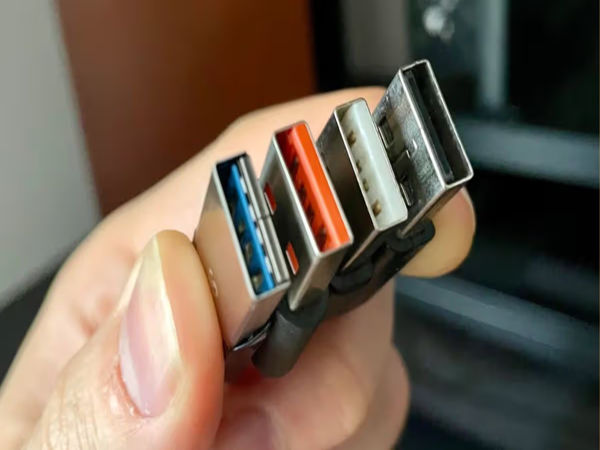
Initially, all USB ports looked identical from the outside. Users couldn't distinguish between ports that offered fast data transfer and those that were slower. To resolve this confusion, companies began using different colors inside the ports:
White: This indicates the older USB 1.x standard. It offered very low speeds (ranging from 1.5 Mbps to 12 Mbps) and is virtually obsolete today.
Black: This represents the USB 2.0 port, offering speeds up to 480 Mbps. It is still widely used in TVs and budget laptops for keyboards, mice, printers, and standard charging.
Blue: This indicates USB 3.0. It revolutionized the USB landscape by achieving speeds of up to 5 Gbps.
Teal/Blue-Green: This color typically denotes USB 3.1 or 3.2 Gen 2 (10 Gbps speed). However, the specific meaning can vary slightly between manufacturers.
Red: This is a high-performance port (10 to 20 Gbps speed). It is often referred to as an "Always-On" port, meaning you can charge your phone through it even when the laptop is turned off.
Yellow and Orange: Like the red port, these facilitate power sharing. They continue to provide power for charging even when the laptop is in sleep mode.
Why doesn't USB-C use different colors?
Now, let's address the biggest question. Since color-coding made things so easy, why don't new USB-C ports use colors? The simple answer is that USB-C isn't just a data transfer or charging cable; it is an all-rounder. A single USB-C port can perform a multitude of tasks, such as:
Super-fast charging for phones and laptops
High-speed data transfer
4K and 8K video output (for TVs/monitors)
Audio output
Support for Thunderbolt and DisplayPort
The problem is that not every USB-C port performs all these functions. Two USB-C ports might look identical, yet one might only transfer data at 480 Mbps, while the other supports speeds of 40 Gbps, 240W charging, and 8K video. It is impossible to convey such a wide range of capabilities using just a single color.
USB-C's greatest strength
USB-C features a special technology known as "Alternate Mode." This means a single port can switch its function; it can act as an HDMI port, a DisplayPort, or even an audio jack at different times. That is why the old color-coding formula doesn't work here.
So, how do you identify a USB-C port's capabilities?
Since USB-C ports lack color-coding, companies use logos and symbols to indicate their capabilities:
SS (SuperSpeed): If "SS" is marked next to the port, it supports high-speed data transfer.
Lightning bolt symbol (Thunderbolt): This indicates that the port is equipped with high-speed Thunderbolt technology.
Battery or plug symbol: This signifies high-power charging capability.
"D" symbol (DisplayPort): This indicates that you can connect a monitor or screen to this port.
Note: Some companies, like Apple, do not place any logos on their laptops. In such cases, you have to check the laptop's manual or the company's website to find out the port's actual capabilities.
Disclaimer: This content has been sourced and edited from Amar Ujala. While we have made modifications for clarity and presentation, the original content belongs to its respective authors and website. We do not claim ownership of the content.