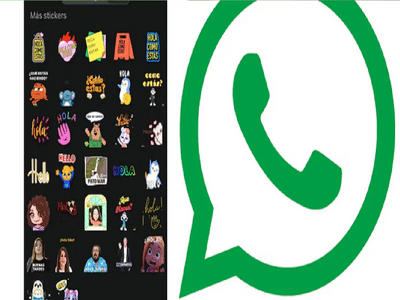
WhatsApp's AI stickers are a blast. Instead of forwarding the same old image, you can create custom stickers that match your mood, your message, and your style. This feature uses AI to turn your text prompts into shareable stickers. You can convert photos into stickers, create AI stickers using text, organize stickers into packs, add more later, and share the entire pack with others. There's no need to download any third-party apps. Everything happens within WhatsApp. The steps are the same on Android and iOS, with slight differences in the interface. Below is a detailed, step-by-step guide that covers every sticker option currently available.
How to create custom stickers from photos on WhatsApp
You can turn any photo on your phone into a sticker with WhatsApp. This is helpful for personal photos, reactions, or inside jokes that you want to reuse in chats.
Steps to follow on Android and iOS:
Open the stickers section in a chat.
Tap Create or the pencil icon.
Choose a photo from your phone's gallery or click a photo with your phone's camera. From the preview screen, choose one of the preset options and proceed:
Tap Add sticker emoji to add a sticker or emoji to your sticker.
Tap Add text to sticker (T icon) to add text to your sticker.
Tap Draw on sticker (pencil inside circle icon) to draw on your sticker.
Tap Dismiss (X icon) to cancel or start again.
Tap '>' to send your sticker.
How to create AI stickers on WhatsApp
WhatsApp also has an AI sticker feature that creates stickers based on what you type. This is helpful if you want a sticker of a specific photo but don't have one.
Follow these steps:
Open the Stickers section.
Tap Create.
Select Generate with AI.
Enter a short text description of the sticker you want.
Tap Generate to see the options.
Select a sticker and save it.
The AI sticker will appear alongside your other custom stickers.
How to create a sticker pack on WhatsApp
Sticker packs help you group similar stickers together. Instead of scrolling through tons of different stickers, you can group them into a single, named pack.
Steps for Android and iOS users:
Open the Stickers section.
Tap Create or the pencil icon.
Select one or more stickers you created.
Tap the three-dot menu.
Select Add to sticker pack.
Select New sticker pack.
Enter a name for the pack and save.
The new sticker pack will now appear in your sticker tray.
PC: Rochak Khabre