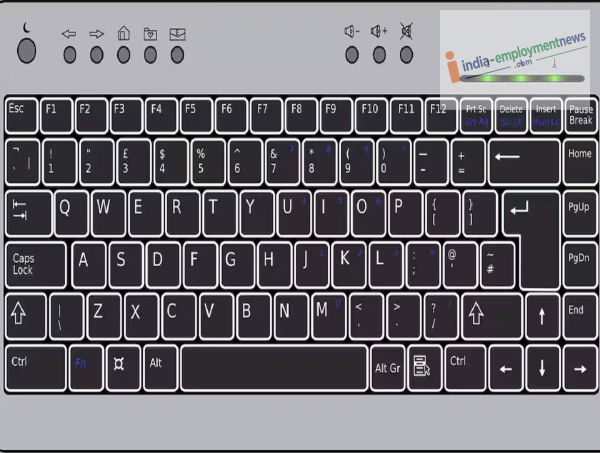
People typically use keyboards solely for typing when working on computers or laptops. While a wide range of wired and wireless keyboards is available on the market today, most users remain unaware of the many other tasks a keyboard can perform. Yes, you can do much more than just type with it. Let’s explore this in detail.
Do much more than just copy-paste
Almost every user knows how to copy and paste text using a keyboard: Ctrl+C to copy and Ctrl+V to paste. Similarly, Ctrl+X is used to cut text or files. If you make a mistake, pressing Ctrl+Z undoes the action, while Ctrl+Y allows you to redo it.
Switch between apps without a mouse
Additionally, if you have multiple windows open on your computer, you don’t need to use the mouse to select a different window every time. You can quickly switch between open windows by pressing Alt+Tab. This feature is particularly useful when you are working simultaneously across a browser, Word, and other applications.
An easy way to take screenshots
You can also take screenshots using the keyboard. On Windows computers, the PrtScn key captures the entire screen. Alternatively, pressing Windows+Shift+S allows you to select a specific area of the screen to capture. This makes it easy to quickly save or share important information.
Open files and folders quickly
Managing files and folders is also much easier with a keyboard. Pressing Windows+E opens File Explorer. You can easily rename a selected file by pressing F2, and the Delete key sends a file to the Recycle Bin. Useful for Browsing
That’s not all; the keyboard simplifies several tasks while web browsing. Pressing Ctrl+T opens a new tab, while Ctrl+W allows you to close the current tab. Additionally, if you accidentally close a tab, you can reopen it by pressing Ctrl+Shift+T. You can also quickly access the address bar to search for a website by pressing Ctrl+L.
A Way to Lock Your Computer
If you need to step away from your computer for a while, you can press Windows+L instead of using the mouse to lock it. This instantly locks the computer, ensuring that no one else can view the information on your screen while you are away.