3
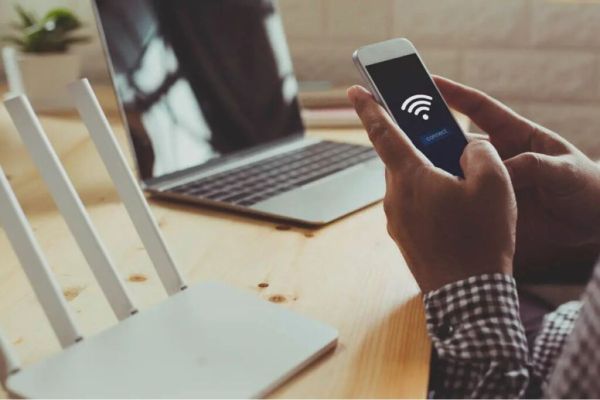
Feel like your internet has been slow lately? If yes, then it is possible that someone else is using your WiFi. In this article we will tell you about a simple way by which you can know which devices are connected to your WiFi. It does not require any technical knowledge; You can scan your home WiFi network right from your mobile browser. Such unknown devices not only reduce your internet speed but can also become a threat to your personal information.
The main purpose of network scanning is to know whether any unknown person or device is misusing your network and data. When other devices are connected without reason, it slows down the internet. Through scanning you can identify these devices and ensure that only people and devices you trust are connected to your WiFi.
Before identifying an unknown device, it is important to know what are the MAC and IP addresses of your mobile, laptop etc.
For iPhone users, the MAC address can be viewed by going to Settings > General > About. At the same time, get the IP address by tapping on the ‘i’ button in front of your network in Settings > Wi-Fi.
In Android phones, MAC address is available in Settings > About Phone > Status. And by tapping on your network in Settings > Network & Internet > Wi-Fi, you will get the IP address.
Now enter the IP address of the router in your phone’s browser. Usually it is 192.168.1.1 or 192.168.0.1. Entering this will open the router’s control page, where you can see the connected devices. Log in with the admin username and password provided on the bottom of the router or in its manual.
Go to the router’s settings and open options like ‘Attached Devices’, ‘Device List’ or ‘DHCP Client List’. Here you will find a list of all the phones, laptops or other devices connected to the Wi-Fi, including their name, MAC address and IP address. Compare these with the devices you know, and if an unknown device shows up, assume someone else is also using the network.
First of all, change your WiFi password; This will automatically disconnect all the devices. After that, turn on MAC filtering so that only your trusted devices can connect. Keep the WPS feature turned off as it weakens the security. Keep updating the software (firmware) of your router from time to time and keep the name of WiFi in such a way that the model of the router is not known.
Share your reaction or leave a quick response — we’d love to hear what you think!