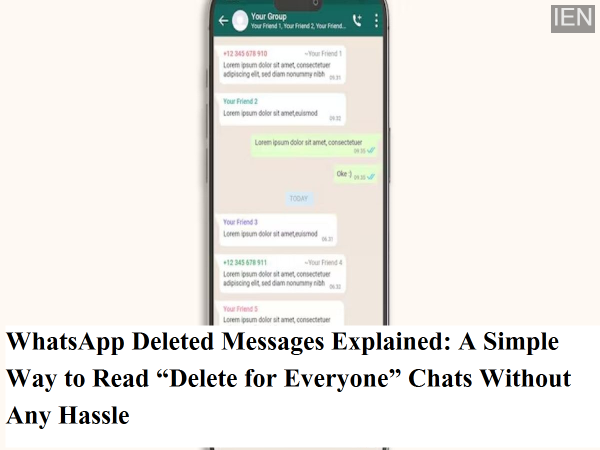
WhatsApp has become an essential part of everyday communication. From early morning greetings to late-night conversations, most personal and professional chats now happen on this single app. Whether it’s family updates, office work, or friendly banter, WhatsApp plays a central role in our digital lives.
However, there is one situation that almost every user has faced at least once. You receive a message, and before you can open it, the sender deletes it using the “Delete for Everyone” option. In the chat window, you are left staring at the line: “This message was deleted.” Naturally, curiosity kicks in, and the big question arises—what was written in that message?
If you are someone who wants to view deleted WhatsApp messages without complicated steps, there is a simple trick you should know. While this method is not a WhatsApp feature, it can still help you see deleted messages under certain conditions.
WhatsApp itself does not provide any official option to recover or view messages that have been deleted using “Delete for Everyone.” Once the sender removes the message, it disappears from the chat permanently.
However, Android phones offer an inbuilt feature that can sometimes help you read deleted messages—if the right settings are enabled in advance.
This trick works through an Android system feature called Notification History. Whenever a message arrives on WhatsApp, your phone displays a notification. In many Android devices, the text of that notification is saved temporarily in Notification History.
So, even if the sender deletes the message later, the notification text may still remain stored on your phone. This means you can read the message content from Notification History, even though it no longer appears in WhatsApp.
To make sure you can access deleted WhatsApp messages in the future, you need to enable Notification History beforehand. Here’s how you can do it:
Open Settings on your Android phone
Tap on Notifications
Look for Advanced Settings or directly search for Notification History
Turn Notification History ON
Once enabled, your phone will start saving incoming notifications, including WhatsApp message previews.
Important note: This setting only works for future notifications. Messages that were deleted before enabling Notification History cannot be recovered.
If a message arrives and is later deleted by the sender, follow these steps:
Go to Settings on your phone
Open Notification History
Look for notifications related to WhatsApp
Tap on the notification from the relevant time
You may be able to read the text of the deleted message
In many cases, the full message text appears exactly as it was received in the notification.
While this method is helpful, it does come with limitations:
It works only for text messages
Photos, videos, voice notes, GIFs, and stickers cannot be viewed
If notifications were turned off, nothing will be saved
Messages received while the phone was on silent mode or DND may not be recorded
Long messages may appear partially cut in notifications
Because of these restrictions, Notification History should be seen as a helpful backup—not a guaranteed solution.
Yes, this is a built-in Android feature and does not involve third-party apps, which often pose privacy and security risks. Using Notification History is safer than installing unknown apps that claim to recover deleted WhatsApp messages.
If you often feel curious about deleted WhatsApp messages, enabling Notification History can be a smart move. While it doesn’t work in every case, it can still help you read deleted text messages without any complicated steps or external tools.
If you found this guide useful, don’t forget to share it with others. Stay connected for more easy-to-understand tech tips, smartphone tricks, and digital safety updates.