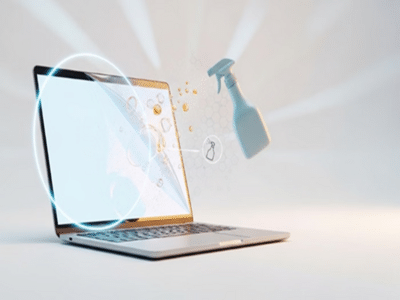
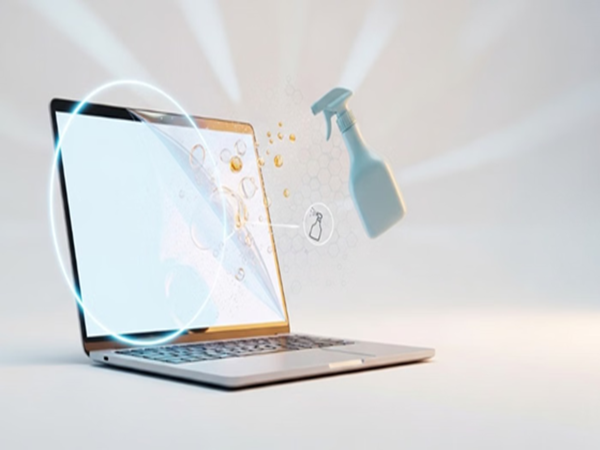
Cleaning Monitor Screens: We rely on laptops, monitors, and smartphones for work throughout the day, and constant use leads to the accumulation of dust, fingerprints, and smudges. Many people find it easiest to clean them using eyeglass cleaners or other chemical-based products. While these do get the job done, experts warn that you might be inadvertently damaging your gadget; using the wrong cleaner can harm the screen's anti-glare and protective coatings. If you want to keep your screen looking brand new for the long term, it is crucial to know the correct cleaning method.
Why can chemical cleaners cause damage?
Many modern laptop and monitor screens feature anti-glare and specialized protective coatings that enhance the visual experience while providing extra protection for the display.
Eyeglass cleaners, window cleaners, and other products containing harsh chemicals can gradually degrade these coatings. This can compromise screen quality and even leave permanent marks on the display.
The right way to clean the screen
1. Turn off the screen before cleaning
Completely shut down your laptop or monitor before you begin cleaning the screen. This not only makes the process easier but also minimizes the risk of technical issues.
2. Use a microfiber cloth
Always use a clean, soft cloth to wipe the screen. If necessary, you can lightly dampen the cloth. Lukewarm water or a 1:1 mixture of water and isopropyl alcohol is suitable for this purpose.
3. Do not apply liquid directly to the screen
Experts advise against spraying any liquid directly onto the screen. Instead, apply a small amount of liquid to the microfiber cloth first and then wipe the screen. Spraying directly can cause liquid to seep into the edges or internal components, increasing the risk of damage. Therefore, avoid this practice.
4. Clean using a circular motion
When cleaning fingerprints, dust, and smudges from the screen, move the cloth gently in a circular motion. Applying too much pressure can damage the screen. If a stain is stubborn, take a little extra time, but do not try to scrub it vigorously.
5. Clean the frame and keyboard as well
You can use the same microfiber cloth used for the screen to clean the screen frame, stand, and laptop keyboard. Regular cleaning extends the device's lifespan and improves its appearance.
How often should the screen be cleaned?
Experts recommend cleaning the laptop or monitor screen once every one to two weeks.
This prevents the accumulation of dust, fingerprints, and other grime. If the screen gets splashed or stained, it is best to clean it immediately.
Compressed air can also be used to remove dust accumulated along the edges and base of the screen.
Avoid these mistakes while cleaning.
Do not use chemical cleaners.
Products like Clorox wipes, Windex, eyeglass cleaners, or any harsh chemical-based products should not be used on the screen. They can damage the screen's coating.
Do not clean the screen while it is on
Always clean the device after turning it off. Cleaning an active screen can lead to pressure-related issues or other risks.
Avoid paper towels and tissues.
Using paper towels, tissue paper, or any rough cloth can cause fine but permanent scratches on the screen.
Do not apply pressure to the screen.
The display is considered a delicate component. Therefore, never apply excessive pressure while cleaning, as this could damage the screen.
Disclaimer: This content has been sourced and edited from Amar Ujala. While we have made modifications for clarity and presentation, the original content belongs to its respective authors and website. We do not claim ownership of the content.